
OAuth Redirect to Localhost or Your Old Domain? How to Fix It (2026)
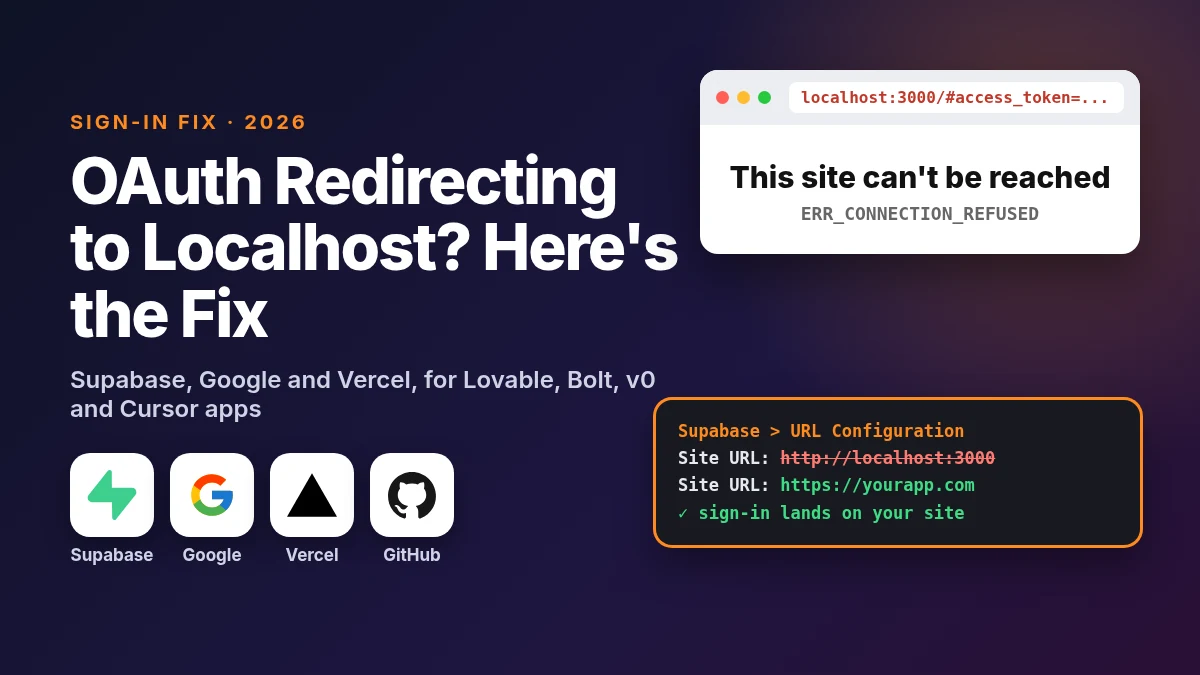
You deploy your app, click Sign in with Google, pick your account, and then… your browser lands on localhost:3000 with a “This site can’t be reached” error. It worked perfectly in the builder. Now nobody can log in.
If you’re seeing an OAuth redirect to localhost after deploying a Lovable, Bolt, v0 or Cursor app, you’re in good company. It’s one of the most common things that breaks when a vibe-coded app moves to a real URL, and it almost always comes down to one or two settings that still point at your dev machine. The fix usually takes about 10 minutes once you know where to look.
In this guide I’ll explain why it happens in plain English, then walk you through the exact settings to change in Supabase, your code, Google Cloud, GitHub and Vercel. Every setting and code snippet below comes from the official Supabase, Google, GitHub, Vercel, Vite, Next.js, Netlify, Lovable and Bolt docs, checked on October 22, 2026.
Here’s the quick fix:
| Where | What to check | Set it to |
|---|---|---|
| Supabase: Site URL | Authentication, URL Configuration. Still says http://localhost:3000? | Your live URL, like https://yourapp.com |
| Supabase: Redirect URLs | Is the exact URL your app sends people back to on the allow list? | Add https://yourapp.com/auth/callback (and your www version if you use it) |
| Your code: redirectTo | Hard-coded localhost, or missing entirely? | `${window.location.origin}/auth/callback` or your production URL |
| Google Cloud Console | OAuth client still only lists localhost? | JavaScript origin = your live URL. Redirect URI = your Supabase callback URL |
| Vercel env vars | A VITE_ or NEXT_PUBLIC_ URL that was localhost at build time? | Your live URL, then redeploy |
Want sign-in fixed for you? Sign-in that still points at localhost is one of the gaps we see again and again. Launch Mango‘s Own and Secure ($199 one-off) moves your Lovable, Bolt, v0 or Cursor app onto your own GitHub, Supabase and Vercel accounts, then checks and fixes sign-in and redirects, Supabase RLS, exposed keys and live Stripe payments, with a custom domain included. Money back if it isn’t live on your accounts. Run the free app check »
Auth redirect broken after moving domains?
If sign-in still sends people to your old lovable.app or vercel.app address after a domain move, your Supabase Site URL or redirectTo still points at the old domain. Set the Site URL to the new domain, add its callback to Redirect URLs, build redirectTo from window.location.origin, add the new Google origin, update site URL env vars and redeploy.
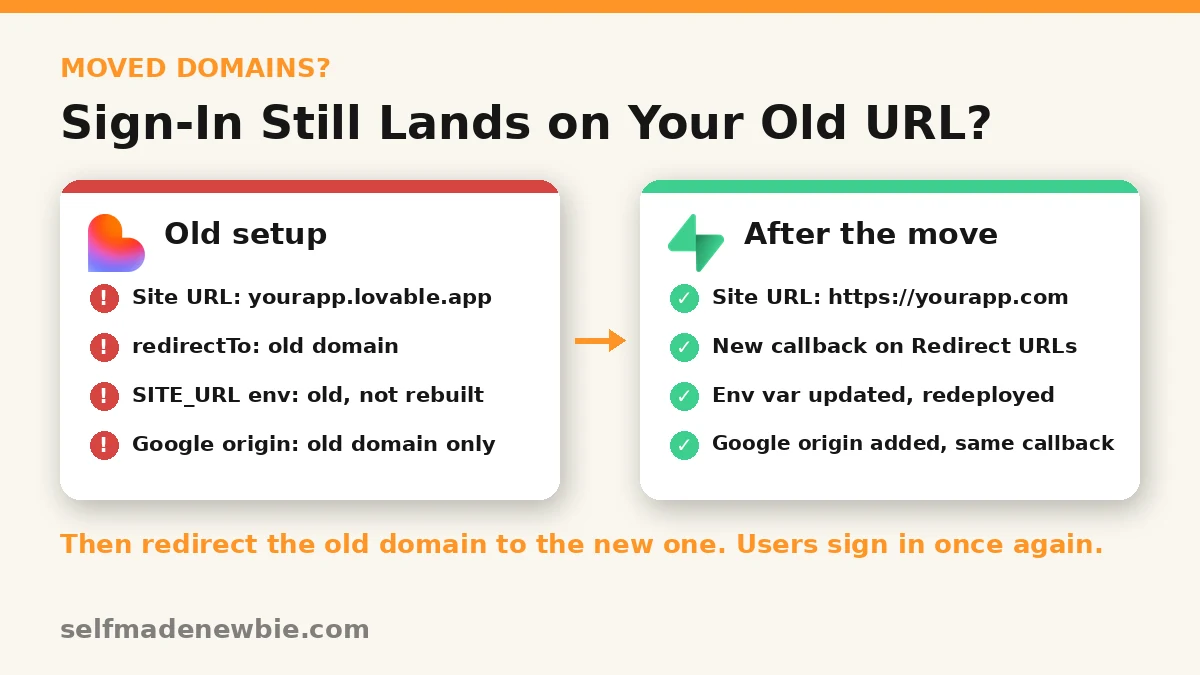
This one catches a lot of people because the app itself moved fine. The pages load on the new domain, but sign-in quietly sends everyone back to the old address. Supabase’s redirect URL docs (checked November 8, 2026) explain why: the Site URL is the default redirect when no redirectTo is given, and any redirectTo has to match your Redirect URLs list. If either one still says the old domain, that’s where people land.
Builders make this easy to miss. Lovable’s authentication docs say that on its built-in backend, publishing sets the Site URL to your lovable.app address and connecting a custom domain adds it to the Redirect URLs. A Site URL you set yourself stays unchanged, and apps on your own Supabase project get none of these updates. So open the setting and check it: if it still shows lovable.app, every fallback goes there. Bolt’s auth docs say the same Site URL fallback applies and that apps with multiple domains may need these settings edited by hand. If you’re still setting the domain up, my guide to connecting a custom domain to Lovable covers the DNS side.
Domain move decision table (find your symptom, then apply the fix):
| Symptom | Cause | Fix |
|---|---|---|
Sign-in finishes on your old yourapp.lovable.app or yourapp.vercel.app address | The Supabase Site URL still holds the old address, and your redirectTo is missing or not on the allow list, so Supabase falls back to it | Set the Site URL to https://yourapp.com and add your exact new callback (like https://yourapp.com/auth/callback) to Redirect URLs |
| Sign-in starts on the new domain but lands back on the old one | redirectTo is hard-coded to the old domain, or built from a VITE_SITE_URL / NEXT_PUBLIC_SITE_URL that was baked in at build time | Use `${window.location.origin}/auth/callback`, or update the env var and redeploy |
| Confirmation, magic link or password reset emails open the old domain | The Site URL is still old, or the email template uses {{ .SiteURL }} while your code passes a redirectTo | Fix the Site URL, pass emailRedirectTo / redirectTo from the new origin, and use {{ .RedirectTo }} in the template |
Google shows origin_mismatch or redirect_uri_mismatch on the new domain | The new domain is not an Authorized JavaScript origin, or (Lovable with your own Google keys) its redirect URI was never added and selected | Add https://yourapp.com as an origin. Keep the Supabase callback as the redirect URI. Allow 5 minutes to a few hours |
| Google or GitHub breaks right after you turned on a Supabase custom domain | OAuth flows now advertise the custom auth domain as the callback URL | Add https://auth.yourapp.com/auth/v1/callback in Google and GitHub in addition to the supabase.co callback |
| Everyone looks signed out on the new domain | Sessions live in browser storage or cookies tied to the old domain, which the new domain cannot read | Nothing to fix: users sign in once on the new domain. Redirect the old domain so they only do it once |
| People keep signing in on the old domain from bookmarks and old links | The old domain still serves the app instead of redirecting | Vercel: domain redirect or a host-scoped vercel.json redirect (308). Netlify: a 301! rule. Lovable: set the new domain as primary (other connected domains get a 302) |
The good news on Google: with Supabase, Google never sends users straight to your app. It sends them to your Supabase callback, https://<project-ref>.supabase.co/auth/v1/callback, and that address doesn’t change when your app’s domain does. Supabase’s Google guide puts your app URL under Authorized JavaScript origins and the Supabase callback under Authorized redirect URIs, so a domain move usually means adding one origin. Google’s OAuth client help says origins and redirect URIs can’t contain wildcards, an unregistered origin gives origin_mismatch, and changes can take 5 minutes to a few hours to apply. The exception is a Supabase custom domain: once it’s active, OAuth flows advertise the custom domain as the callback, so add that callback in Google and GitHub alongside the old one.
Env vars are the other classic trap. Vite statically replaces import.meta.env values at build time, Next.js inlines NEXT_PUBLIC_ values into the browser bundle, and Vercel’s env var docs say changes only apply to new deployments. Change the value and redeploy, or the old domain stays frozen in your JavaScript. If the variable won’t show up at all, see Vite env variables not working.
One thing no setting fixes: sessions don’t follow you to a new domain. Supabase’s JavaScript client saves the session in local storage by default, and MDN notes that local storage belongs to a single origin. Cookie-based setups (like Next.js with server-side rendering) hit the same wall, because a site can only set cookies for its own domain or a parent domain. Expect every existing user to sign in once on the new domain, then redirect the old one so nobody keeps a second session there.
For that redirect, Vercel’s redirects docs recommend a permanent, hostname-scoped redirect from your-project.vercel.app to your custom domain that keeps the path and query string, and say to expect a 308. Here’s their pattern with placeholder names:
{
  "redirects": [
    {
      "source": "/:path*",
      "has": [{ "type": "host", "value": "yourapp\\.vercel\\.app" }],
      "destination": "https://yourapp.com/:path*",
      "permanent": true
    }
  ]
}
You can also pick Redirect to on the old domain under Project Settings > Domains. On Netlify, a rule like https://yoursite.netlify.app/* https://yourapp.com/:splat 301! does the same job (301 is Netlify’s default redirect status). On Lovable hosting, the custom domain docs say you can’t remove the lovable.app URL, but when you set a primary domain, your other connected domains redirect to it with a 302.
Domain move checklist for sign-in (run it in this order the day you switch):
- Pick one main address (for example
https://yourapp.com, with or without www) and write it down exactly. Every setting below uses that one string. - In Supabase, open Authentication > URL Configuration. Set the Site URL to the new address and add the new callback to Redirect URLs (the exact path in production, plus www if you serve it). On Lovable’s built-in backend this lives under More > Users > Settings > Advanced. On Bolt it’s in the database Authentication settings.
- In your code, build every
redirectToandemailRedirectTofromwindow.location.origin, then search the project for the old domain and remove any hard-coded copies. - Update
VITE_SITE_URLorNEXT_PUBLIC_SITE_URLon your host for Production, then redeploy. These values are frozen into the build, and Vercel only applies env changes to new deployments. - If your code passes a
redirectTofor email links, swap{{ .SiteURL }}for{{ .RedirectTo }}in your Supabase email templates. - In Google Cloud, add the new domain under Authorized JavaScript origins (no path, no wildcard). Leave
https://<project-ref>.supabase.co/auth/v1/callbackunder Authorized redirect URIs. Only addhttps://auth.yourapp.com/auth/v1/callbackif you set up a Supabase custom domain. On Lovable with your own Google keys, add the new redirect URI in Google, then select it in Lovable and click Save. - In your GitHub OAuth app, change the Homepage URL to the new domain. The Authorization callback URL stays your Supabase callback (GitHub allows up to 10 callback URLs if you need a custom auth domain one too).
- Redirect the old domain to the new one: a Vercel domain redirect or host-scoped
vercel.jsonrule, or a Netlify301!rule. On Lovable, set your custom domain as primary so your other connected domains redirect to it. - Test in incognito on the new domain: Google, GitHub, email sign-up and a password reset. Once the old domain redirects and everything passes, remove the old domain from Redirect URLs and Google origins.
Moving hosts as well as domains, for example moving your app off Lovable onto your own Vercel and Supabase? Run the same checklist on the new host before you point the domain at it.
Moving domains and want sign-in to just work? Start with our free app check: five quick questions, about 2 minutes, and it flags your lock-in, security and deploy risks before you pay anything. If you’d rather hand the move off, Launch Mango‘s Own and Secure ($199 one-off) is the one we’d point you to: our team moves your Lovable, Bolt, v0 or Cursor app onto your own GitHub, Supabase and Vercel accounts, checks and fixes sign-in and redirects, locks down Supabase RLS, removes exposed API keys, sets up live Stripe payments and hands you a security report, with a custom domain included. Own Your App ($79 one-off) covers just the move onto your own accounts. Money back if it isn’t live on your accounts. Your app, on your accounts, safe for real users.
Why Sign-In Redirects to Localhost After You Deploy
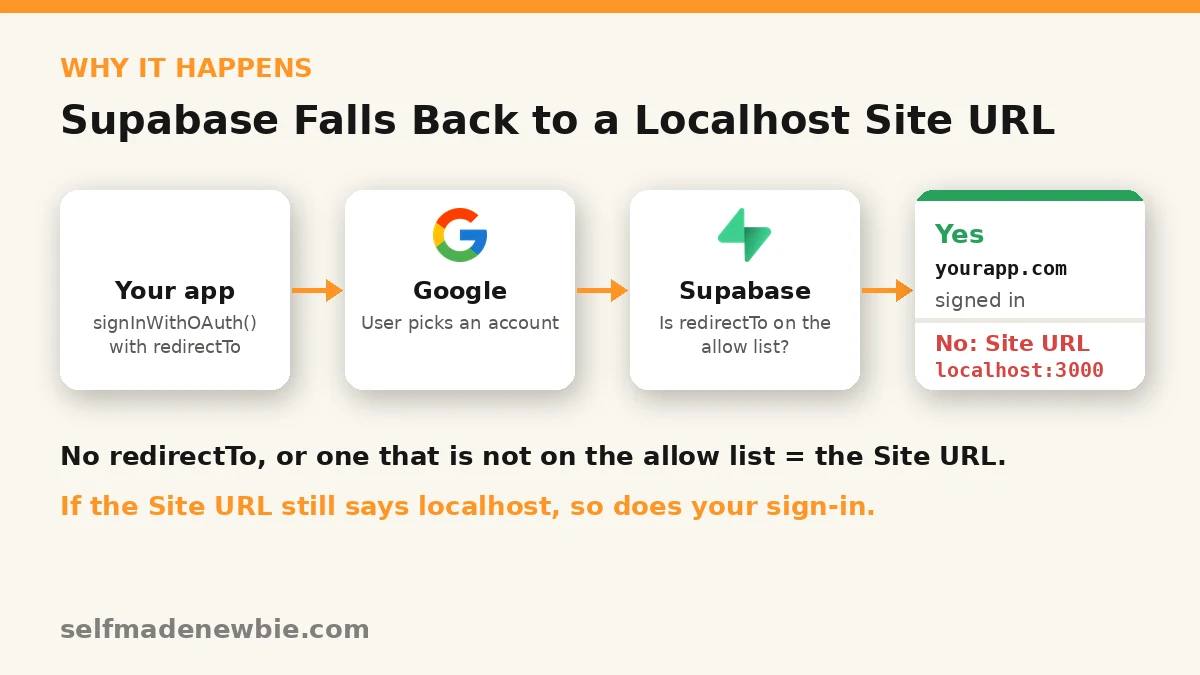
To fix this quickly, it helps to know the three hops a “Sign in with Google” click actually makes in a Supabase app:
- Your app to Supabase. Your code calls
supabase.auth.signInWithOAuth(), usually with aredirectToaddress that says where the user should end up afterwards. - Supabase to Google and back to Supabase. Google shows the account picker, then sends the user to your Supabase project’s callback URL, which looks like
https://<project-ref>.supabase.co/auth/v1/callback. - Supabase back to your app. Supabase sends the user to your
redirectToaddress, but only if that address is on your Redirect URLs allow list. If it isn’t, or if your code didn’t pass one, Supabase falls back to the Site URL.
And here’s the catch. Supabase’s redirect URL docs say the Site URL is the default redirect when no redirectTo is given, and tell you to change it from http://localhost:3000 to your production URL. If nobody changed it, every fallback sends your users to localhost. Supabase’s own troubleshooting note on “redirects going to localhost instead of the production site URL” gives the same answer: your exact redirectTo URL has to be in the Redirect URLs setting.
So when you get an OAuth redirect to localhost, it’s almost always one of these five things:
| Cause | What happens | Fix section |
|---|---|---|
Site URL left as http://localhost:3000 | Any redirect that falls back lands on localhost | Fix 1 |
redirectTo missing or not on the allow list | Supabase ignores it and uses the Site URL | Fix 1 and Fix 2 |
redirectTo hard-coded to localhost in your code | Supabase sends users exactly where you told it to | Fix 2 |
| Google Cloud (or GitHub) client not set up for production | Google shows an error instead of signing the user in | Fix 3 |
A VITE_ or NEXT_PUBLIC_ URL that was localhost at build time | The old value is frozen into your live JavaScript | Fix 4 |
Fix 1: Set the Supabase Site URL and Redirect URLs
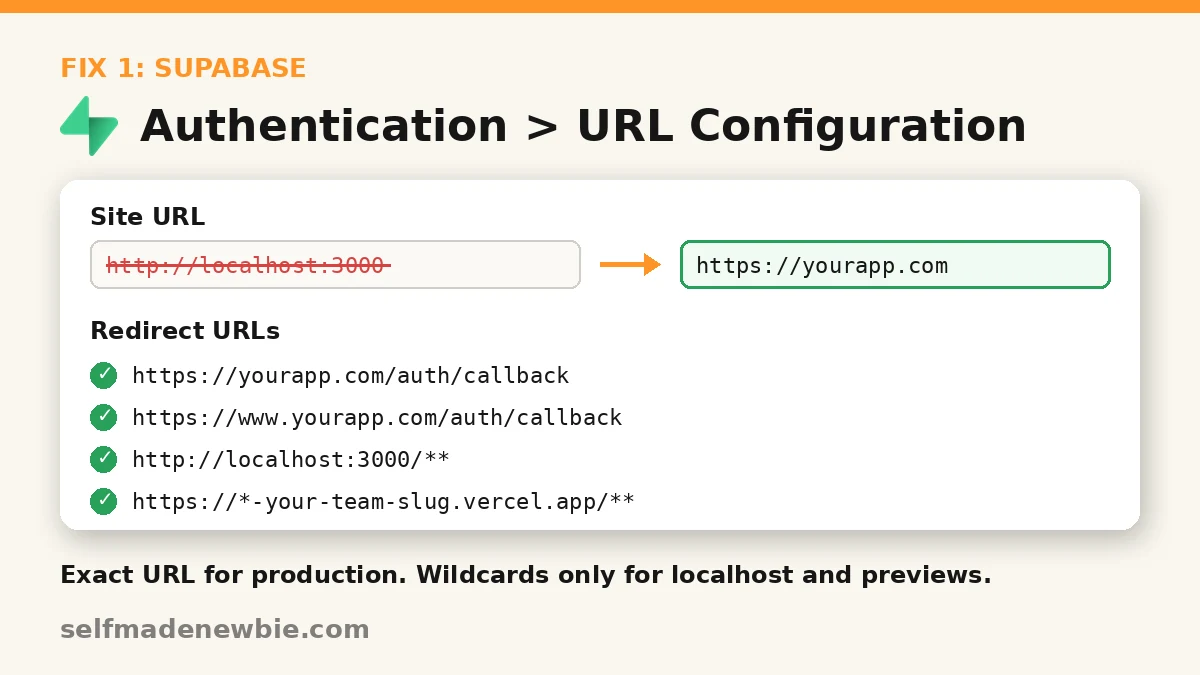
This is the fix for most people, and it doesn’t need a single line of code. If your app signs people in through your own Supabase project (typical for Cursor and v0 apps, and for Lovable or Bolt apps connected to your own Supabase account), do this first. On Lovable’s or Bolt’s built-in backend, the same two settings live in the builder instead (see the Lovable and Bolt section below).
- Open your project in the Supabase dashboard and go to Authentication, URL Configuration.
- Change Site URL from
http://localhost:3000to your live address, likehttps://yourapp.com(or your.vercel.appURL if you don’t have a domain yet). - Under Redirect URLs, add every exact address your app sends people back to after sign-in. For most apps that’s your callback route, like
https://yourapp.com/auth/callback, or just your homepage if your app has no callback page. - If people can reach your app on both
yourapp.comandwww.yourapp.com, add both. The allow list matches text, so it doesn’t know they’re the same site. - Keep
http://localhost:3000/**on the list if you still develop locally. It only affects sign-ins that ask for localhost. - Save, then try signing in again in an incognito window.
A setup that covers production, a www version, local development and Vercel previews looks like this:
Site URL:
https://yourapp.com

Redirect URLs:
https://yourapp.com/auth/callback
https://www.yourapp.com/auth/callback
http://localhost:3000/**
https://*-your-team-slug.vercel.app/**
On wildcards: Supabase supports * (matches anything except . and /) and ** (matches anything at all). Its docs recommend the ** globstar for local development and preview URLs, but an exact redirect URL for production. So keep the wildcards for localhost and previews, and spell out your live callback in full.
One more thing that catches people: the Site URL is also what Supabase uses in confirmation and password reset emails by default. Supabase calls this setting critical for email confirmations and password resets. If you pass a custom redirectTo for email links too, its docs suggest switching {{ .SiteURL }} to {{ .RedirectTo }} in your email templates:
<!-- Old -->
<a href="{{ .SiteURL }}/auth/confirm?token_hash={{ .TokenHash }}&type=email">Confirm email address</a>

<!-- New -->
<a href="{{ .RedirectTo }}/auth/confirm?token_hash={{ .TokenHash }}&type=email">Confirm email address</a>
Fix 2: Pass the Right redirectTo in Your Code

Next, look at the code that runs when someone clicks the sign-in button. In your project, search for signInWithOAuth and localhost. These are the two patterns that cause trouble:
// The bug: a hard-coded dev URL
redirectTo: 'http://localhost:3000/auth/callback'

// Also a bug: a variable that was "localhost" when the app was built
redirectTo: import.meta.env.VITE_SITE_URL
The first one is obvious once you see it. The second one is sneakier, and I’ll cover it in Fix 4. For a Vite + React app (older Lovable projects and most Bolt and Cursor apps), the simplest fix is to build the address from the page the user is already on:
const { error } = await supabase.auth.signInWithOAuth({
  provider: 'google',
  options: {
    // send people back to whatever site they started on
    redirectTo: `${window.location.origin}/auth/callback`,
  },
})
window.location.origin is https://yourapp.com on your live site, your preview URL on a preview, and http://localhost:3000 on your laptop, so one line of code works everywhere. The address still has to be on your Supabase Redirect URLs list from Fix 1, or Supabase will ignore it and fall back to the Site URL.
If your app doesn’t have an /auth/callback page, point redirectTo at a page that does exist (often just window.location.origin for the homepage) and allow-list that instead. If it’s a single page app on Vercel and the callback page shows a 404 when it loads, that’s a different bug: see my guide on the Vercel 404 on refresh.
Next.js apps (most v0 projects)
In a Next.js app, sign-in code can run on the server, where there’s no window. Supabase’s docs suggest a small helper that prefers a NEXT_PUBLIC_SITE_URL you set for production, then falls back to NEXT_PUBLIC_VERCEL_URL (set by Vercel) and finally localhost. Here it is, adapted to point at a callback route:
const getURL = () => {
  let url =
    process?.env?.NEXT_PUBLIC_SITE_URL ?? // your production URL
    process?.env?.NEXT_PUBLIC_VERCEL_URL ?? // set by Vercel
    'http://localhost:3000/'
  url = url.startsWith('http') ? url : `https://${url}`
  url = url.endsWith('/') ? url : `${url}/`
  return url
}

await supabase.auth.signInWithOAuth({
  provider: 'google',
  options: { redirectTo: `${getURL()}auth/callback` },
})
For this to work you need to set NEXT_PUBLIC_SITE_URL to your live URL in Vercel’s Production environment. The Supabase Google sign-in guide also shows the app/auth/callback/route.ts file that swaps the sign-in code for a session in Next.js, which v0 apps using server-side auth need.
Fix 3: Check Your Google Cloud Console (and GitHub) Settings
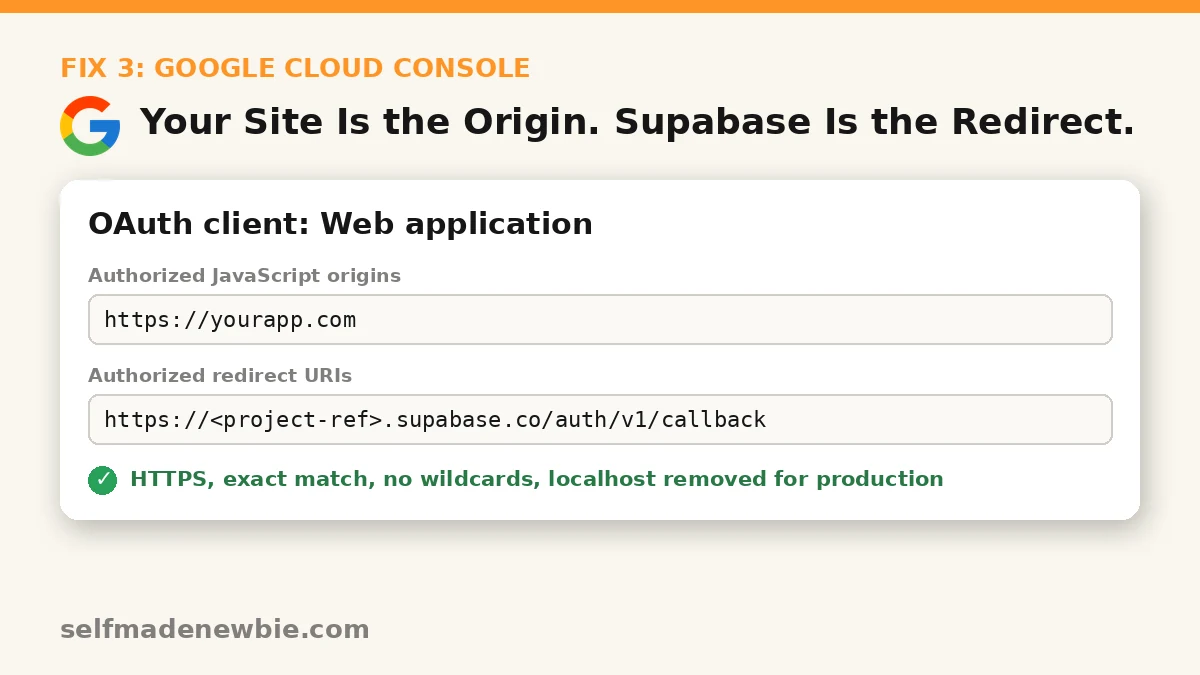
This part confuses almost everyone, because the redirect URI Google wants is not your app’s URL. With Supabase in the middle, Google sends users back to Supabase, and Supabase sends them on to your app.
Per Supabase’s Google sign-in guide, open the Google Auth Platform in Google Cloud Console, go to Clients, and edit your Web application OAuth client:
- Authorized JavaScript origins: add your live site, like
https://yourapp.com. Supabase says to addhttp://localhost:<port>while developing locally, and to remove it when your app goes into production. - Authorized redirect URIs: add your Supabase project’s callback URL. You’ll find it on the Google provider page in Supabase (Authentication, Sign In / Providers, Google). It looks like
https://<project-ref>.supabase.co/auth/v1/callback.
Authorized JavaScript origins:
https://yourapp.com
https://www.yourapp.com

Authorized redirect URIs:
https://<project-ref>.supabase.co/auth/v1/callback
Google’s rules are strict. Its OAuth client help page says redirect URIs and JavaScript origins must use HTTPS (localhost is the only exception), and neither can contain wildcards. Google’s OAuth docs add that the redirect URI must match exactly, including the http or https scheme, upper or lower case, and the trailing slash. If it doesn’t, users see a redirect_uri_mismatch error.
Two practical tips. First, Google says changes can take 5 minutes to a few hours to kick in, so don’t panic if the fix doesn’t work instantly. Second, if your app talks to Google directly without Supabase (rare in vibe-coded apps), the redirect URI is your own app’s callback page instead, and it needs the exact live URL.
GitHub sign-in
Same idea for GitHub. In your GitHub OAuth app settings, the Supabase GitHub guide has you set the Authorization callback URL to your Supabase callback URL. Update the Homepage URL to your live site while you’re there:
Homepage URL:
https://yourapp.com

Authorization callback URL:
https://<project-ref>.supabase.co/auth/v1/callback
GitHub’s OAuth app docs say you can enter up to 10 callback URLs, and its authorization docs note that if no redirect_uri is sent, GitHub uses the first callback URL in your settings. If that first one is a localhost address from testing, swap the order or remove it.
Fix 4: An Env Var With Localhost Baked In at Build Time
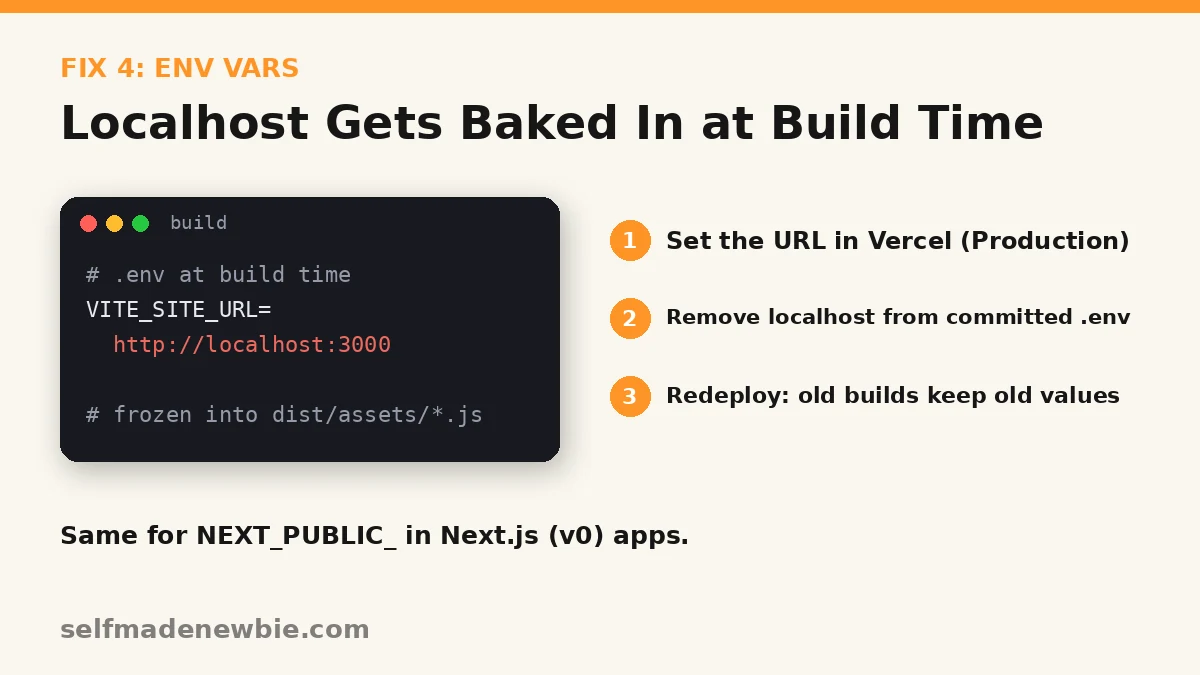
This is the one that makes people think they’re going crazy. You fixed the code, you fixed Supabase, and sign-in still goes to localhost.
Here’s why. Browser-side environment variables in vibe-coded apps aren’t read when the page loads. Vite’s docs say import.meta.env values are statically replaced at build time, and only variables starting with VITE_ make it into your browser code. Next.js does the same with NEXT_PUBLIC_: its docs say those values are inlined into the JavaScript at build time, and after the build your app no longer responds to changes in them.
So if your project has something like VITE_SITE_URL=http://localhost:3000 in a committed .env file, or you set the wrong value in your host, that localhost address is literally written into the JavaScript your users download. Fixing it takes three steps:
- Search your project for
localhost, including any.envfiles that got committed to GitHub. - In Vercel, go to Settings, Environment Variables and set your site URL variable to your live address for the Production environment.
- Redeploy. Vercel’s env var docs say changes only apply to new deployments, never to ones that already exist.
// Vercel: Settings, Environment Variables, Production
VITE_SITE_URL=https://yourapp.com

// in your sign-in code
const siteUrl = import.meta.env.VITE_SITE_URL || window.location.origin
redirectTo: `${siteUrl}/auth/callback`
The || window.location.origin fallback means a missing variable on a preview build won’t send anyone to localhost. If you’re on Netlify instead, its build env vars work the same way: set the variable, then trigger a new deploy.
Missing or wrong env vars cause more than sign-in bugs. They’re behind a lot of blank white pages after a deploy too. If that’s the stage you’re at, my step-by-step on how to deploy a Lovable app walks through setting them up from scratch.
Vercel Preview URLs and Custom Domains
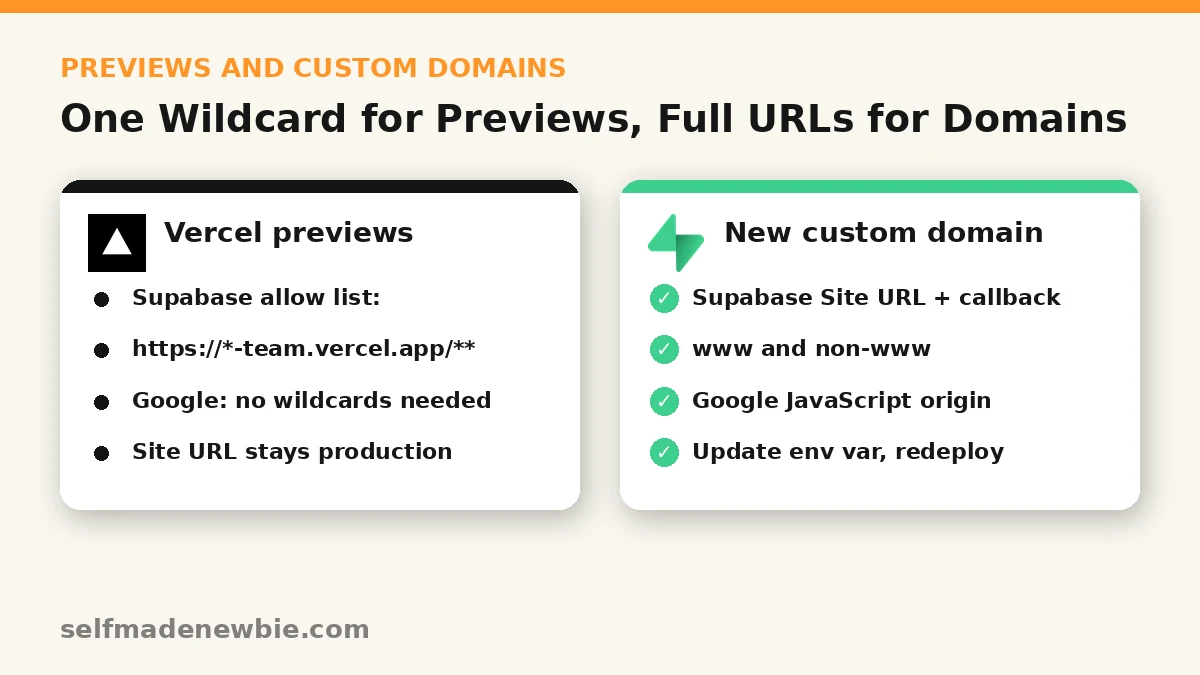
Preview deployments
Every branch or pull request on Vercel gets its own address. Vercel’s generated URL docs show the formats: <project-name>-<unique-hash>-<scope-slug>.vercel.app for a commit and <project-name>-git-<branch-name>-<scope-slug>.vercel.app for a branch. Those change all the time, so you can’t add each one by hand.
Supabase’s docs suggest one wildcard entry for all of them: https://*-<team-or-account-slug>.vercel.app/**. Replace the slug with your own Vercel account or team slug. For Netlify, they suggest https://**--my_org.netlify.app/** with your own site name. Keep your Site URL set to production either way.
Want your code to know which URL it’s on? Vercel’s system environment variables include VERCEL_URL (this deployment), VERCEL_BRANCH_URL (the branch) and VERCEL_PROJECT_PRODUCTION_URL (your production domain, set even on previews). Frameworks get prefixed copies like VITE_VERCEL_URL and NEXT_PUBLIC_VERCEL_URL. Two catches: they come without https://, and Vercel says VERCEL_URL can’t be used together with Standard Deployment Protection. For a browser-only app, window.location.origin is usually simpler.
Heads up: Google won’t accept wildcards, but that’s fine with Supabase. Google only ever sends users back to your Supabase callback URL, so previews only need to be on the Supabase allow list.
Adding a custom domain
Moving from yourapp.vercel.app to yourapp.com is another classic moment for sign-in to break. Each time you add a domain:
- Update the Supabase Site URL to the new domain and add its callback to Redirect URLs (both www and non-www if you serve both).
- Add the new domain to Authorized JavaScript origins in Google Cloud Console.
- Update any
VITE_SITE_URLorNEXT_PUBLIC_SITE_URLvariable and redeploy. - Pick one main version (www or not) and have your host redirect the other to it, so people always land on the same address.
While you’re at it: Supabase’s Google guide points out that without a custom domain for your Supabase project, the Google consent screen shows <project-id>.supabase.co, which doesn’t inspire trust. It suggests something like auth.yourapp.com. That’s optional, but nice once you have real users.
Lovable and Bolt: What They Set for You (and What They Don’t)

If you’re still hosting on the builder, part of this may already be done for you. Once you move off it, it isn’t.
Lovable
Lovable’s authentication docs say that for apps on its built-in backend, Lovable keeps the Site URL and Redirect URLs up to date: it sets the Site URL to your published lovable.app address when you publish, and adds your custom domain to the redirect URLs when you connect one. Lovable’s managed Google sign-in needs no Google Cloud setup at all.
But the same page says apps that use your own Supabase project aren’t updated for you, so you add the addresses in that project’s auth settings yourself (Fix 1). And if you use your own Google credentials, Lovable’s Google sign-in docs say a new custom domain needs its redirect URI added in Google Cloud Console and selected in Lovable, or Google sign-in fails with a redirect URI mismatch. When you move the app to your own hosting, Lovable’s self-hosting guide lists sign-in redirect URLs as one of the things to configure on the new host.
Bolt
Bolt is refreshingly blunt about this. Its authentication docs say Bolt projects use localhost:3000 as the Site URL by default, and that this doesn’t work for live apps. When you publish, Bolt usually updates the Site URL and URI allow list for you, but you may need to edit them by hand, especially with more than one domain. The setting lives under the database icon, Authentication, advanced options.
Bolt’s Google sign-in guide adds two useful warnings: Google’s sign-in flow blocks iframes, so test it on your published site rather than in the Bolt preview, and a new Google OAuth app starts in Testing status, which limits sign-in to 100 users until you publish it in Google Cloud Console.
How to Test Your Sign-In After the Fix
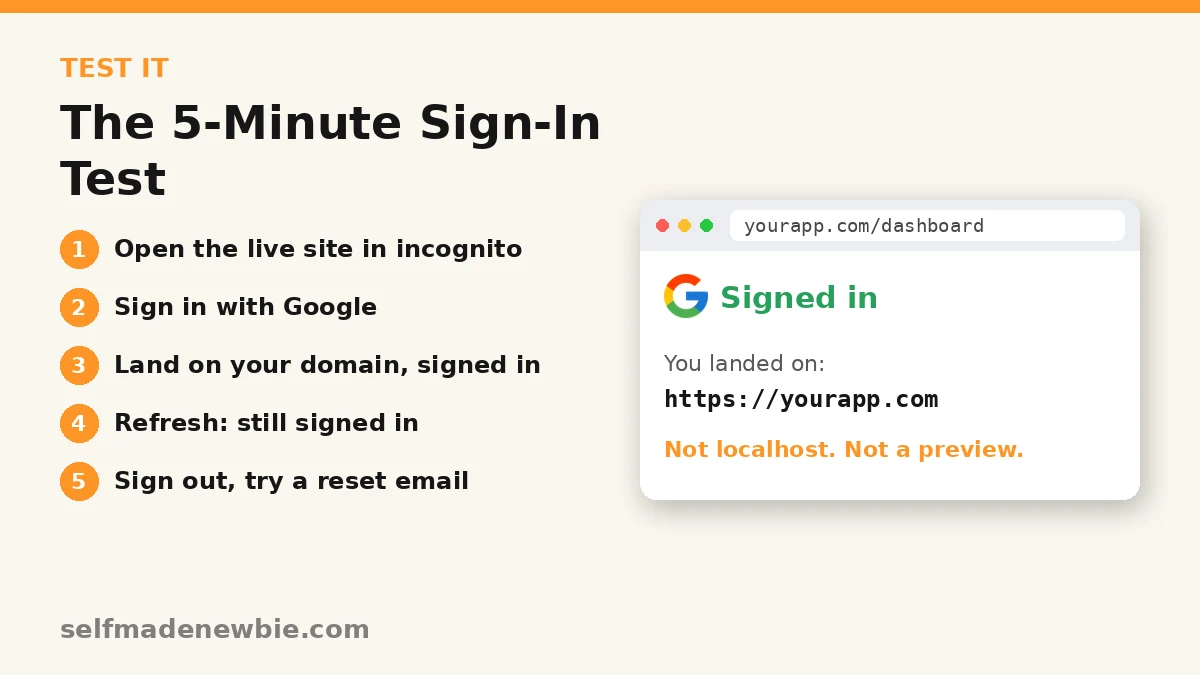
Don’t just check that the button works on your laptop. Run this 5-minute test on the live site:
- Open your live URL in an incognito window, so old sessions and cached code don’t fool you.
- Click Sign in with Google (or GitHub) and pick an account.
- Watch the address bar. You should briefly pass through
accounts.google.comand your Supabase URL, then land on your own domain, signed in. Not localhost, not a preview URL. - Refresh the page you landed on. You should stay signed in.
- Sign out, then sign in again with a different Google account if you have one.
- If your app has email sign-up or password reset, send yourself a reset email and check the link points at your live domain.
- Repeat once on your phone, on mobile data, so you’re not testing from a logged-in browser.
If you landed on a new domain recently, give Google’s settings a little time before you decide something’s still broken. Sign-in is only one item on the go-live list, though. The others (env vars, database permissions, live payments, custom domains) are all in my guide on how to launch your vibe-coded app.
Still Redirecting to Localhost? Troubleshooting Checklist
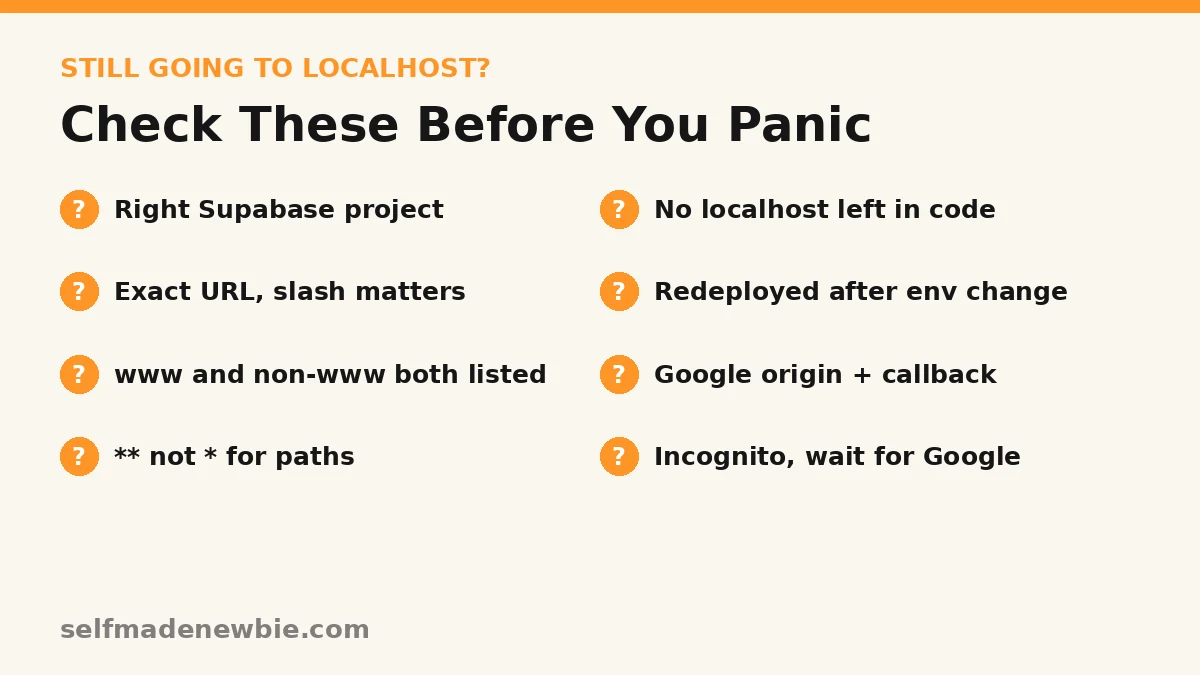
Changed everything and still landing on localhost? Run down this list. It’s almost always one of these:
- Wrong Supabase project. If you have a dev and a production project, make sure you changed the URL Configuration on the one your live app actually uses. Check the Supabase URL in your live env vars.
- Not an exact match.
https://yourapp.com/auth/callbackandhttps://yourapp.com/auth/callback/are different entries, and so arewww.yourapp.comandyourapp.com. When theredirectTodoesn’t match, Supabase quietly falls back to the Site URL. - A single
*where you needed**. In Supabase,*stops at/, sohttps://yourapp.com/*won’t match/auth/callback. - Localhost still in the code. Search the whole repo for
localhost, not just the sign-in file. Your app may have more than one sign-in button or auth helper. - No redeploy after an env var change. The old value stays in the live build until a new deployment runs.
- Google shows an error page instead of redirecting. That’s
redirect_uri_mismatchororigin_mismatch: your Google client is missing the Supabase callback URL or your live origin. - Testing in the builder’s preview. Google blocks iframes, so test on the published site.
- Old session in the browser. Use incognito, or clear site data for your domain.
- Settings just changed. Google says its client settings can take 5 minutes to a few hours to take effect.
Fixed the redirect but not sure what else is waiting to break once real users show up? Our free app check asks five quick questions and flags your lock-in, security and deploy risks, including sign-in.
OAuth Redirect to Localhost FAQ
Why does my Supabase app redirect to localhost after Google sign-in?
Because Supabase couldn’t use the address your app asked for, so it fell back to the Site URL, and the Site URL is still http://localhost:3000. Set the Site URL to your live domain and add your exact callback URL to Redirect URLs.
What is the Supabase Site URL?
It’s the default address Supabase sends people to after sign-in, email confirmation or password reset when your code doesn’t give a valid redirectTo. It should be your main production URL.
Do I add my app URL or my Supabase URL in Google Cloud Console?
Both, in different boxes. Your app URL goes under Authorized JavaScript origins. Your Supabase callback URL (https://<project-ref>.supabase.co/auth/v1/callback) goes under Authorized redirect URIs.
Can I use a wildcard for Vercel preview URLs?
In Supabase, yes: something like https://*-your-team-slug.vercel.app/** in Redirect URLs. In Google Cloud Console, no, but you don’t need one there because Google only redirects to your Supabase callback.
Should I remove localhost from Supabase Redirect URLs?
You can keep http://localhost:3000/** if you develop locally. It only matters when a sign-in asks for localhost. What you must change is the Site URL. For Google, Supabase says to remove the localhost JavaScript origin when you go to production.
I changed the settings and it still goes to localhost. What now?
Check the env var trap first: if your site URL comes from a VITE_ or NEXT_PUBLIC_ variable, it was frozen in at build time, so update it in Vercel and redeploy. Then test in incognito.
Why does sign-in still go to my old domain after I added a custom domain?
Usually your Supabase Site URL still points at the old lovable.app or vercel.app address, or your redirectTo was built from an old env var. Set the Site URL to the new domain, add its callback to Redirect URLs, add the new Google origin and redeploy. See Auth redirect broken after moving domains? above for the decision table and checklist.
Does this apply to magic links and password reset emails?
Yes. Email links use the same Site URL and Redirect URLs settings, so a localhost Site URL breaks confirmation and reset emails too.
Final Thoughts: Fix Sign-In Once, Then Own Your Setup

An OAuth redirect to localhost looks scary, but it’s nearly always a leftover dev setting. Set your Supabase Site URL and Redirect URLs, send a real redirectTo from your code, point Google and GitHub at your Supabase callback, rebuild after env var changes, and test on the live site in incognito.
If sign-in is the first of several things breaking now that your app is off the builder, that’s normal. Localhost redirects usually show up alongside missing env vars, 404s on refresh, a Supabase database nobody has locked down, and Stripe still in test mode. You can work through them yourself (my DIY vs done-for-you breakdown shows what that really takes), or hand them off.
That’s what we do at Launch Mango. Own Your App ($79 one-off) moves your Lovable, Bolt, v0 or Cursor app onto your own GitHub, Supabase and Vercel accounts, live at a real URL with a plain-English handover report, usually in 1 to 2 days, and your money back if it isn’t live on your accounts. Own and Secure ($199 one-off) adds exactly the stuff in this guide: sign-in and redirects checked and fixed, plus Supabase RLS and permissions, exposed API keys, live Stripe payments and webhooks, a security report and a custom domain.
Want the full picture first? Read my Launch Mango review or compare it with the best app launch services. Or just run the free 2-minute app check and see what your app needs.
Your app, on your accounts, safe for real users. Fix the redirect, then go get users.


